

Macros
If you use other platforms for performance tracking or hosting, you may need to include details that won't be known until an impression is delivered. For example, an impression tracking pixel might need to identify the domain name for the impression or the ID of the ad that's being delivered.
Macros are built-in tracking variables in the DSP that insert dynamic data into your click link and ad tags. With macros, you can:
Send data from the DSP to your own tracking software.
Give each ad in your tactic a unique click link.
Send data from the DSP to a third-party ad server.
When you set up your ads, insert macros as part of the Destination URL, Impression Tracking URL, or ad tag markup.
When your tactic is running, the platform generates the appropriate values and inserts them into the URL or ad tag.
Auto macro insertion
When uploading ad tags, you can try to automatically insert macros by selecting Insert macros. For supported ad servers, auto macro insertion identifies the platform that the tag belongs to (like Google), searches the tag for patterns specific to that platform, and adds Subset macros so that the ad server can auto-populate it.
For example:
data-dcm-click-tracker=' ' in the ad tag becomes data-dcm-click-tracker='clickMacroEnc'. A [timestamp] macro in the tag becomes {ts}.
Macros
| Macro | Explanation |
|---|---|
| {advertiserId} | Passes the customer ID # for the impression or click. |
| {brandId} | Passes the unique ID # of the brand for the impression or click. |
| {brandName} | Passes the name of the brand, URL encoded. |
| {adId} | Passes the unique ID # of the ad for the impression or click. |
| {adLabel} | Passes the name of the ad. Special and unsafe characters will be encoded. |
| {domain} | Passes the domain name for the impression or click. |
| {campaignId} | Passes the unique ID # of the tactic for the impression or click. |
| {campaignName} | Passes the name of the tactic, URL encoded. |
| {campaignGroupId} | Passes the group ID. |
| {campaignGroupName} | Passes the name of the group. |
| {clickInvalid} | Passes metric identifying whether a click is valid (0) or invalid (1) for filtering out known test clicks. See Filter invalid clicks to resolve third-party reporting discrepancies for more information. |
| {networkId} | Passes the unique ID # of the exchange for the impression or click. |
| {pageUrl} |
Passes the URL of the page for the impression or click when used in an ad tag. When used in a destination click URL or win beacon URL, it passes only the domain name to prevent the chance of generating a URL that is too long and fails to function. In pixel, script, and click tracking URLs, only |
| {pageUrlEnc} |
Passes the URL of the page for the impression or click in URL-encoded form. Available only in ad tags and VAST URLs. If passed to an ad tag in the request URL, that is, |
| {hyperlocalName} | The name of the hyperlocal target. |
| {carrier} | Passes the mobile carrier of the device (mobile only). |
| {device} | Passes the mobile device name (mobile only). |
| {appId} |
Passes a numeric ID (for Apple) or bundle name (for Google) specific to the mobile app responsible for generating the click (mobile only.) Example values: “383763” (Apple) or “com.google.mygoogleapp” (Google) |
| {inventoryUnitReportingName} | Passes the applicable app bundle ID or the domain name. |
| {appType} |
Passes a string that outputs the origin or type of application responsible for the click. (mobile only) Example values: “APP_STORE” (Apple) or “PLAY_STORE” (Google) |
| {ts} | Generates a random timestamp. |
| {clickMacro} | Inserts the DSP's click-tracking link. |
| {clickMacroEnc} | Inserts the DSP's click-tracking link in URL-encoded form. |
| {postbackId} |
Use {auctionId} instead. The {auctionId} macro works in all places, including postbacks for view-through conversions. Passes a unique identifier representing the current impression or click. This is used to attribute conversions when postback (server to server, S2S) conversions are used. Only processed by the click server; can be passed in ad tags or click URL but isn't substituted until routed through clickserv.subset.com (on redirect, will be replaced with actual value). |
| {firstPartyAudienceIds} | Passes a comma-separated list of first-party audience IDs that were matched for the impression. See the API documentation for details on retrieving the name of a given segment |
| {auctionId} | Passes a unique ID for the auction or impression. |
| {audienceIds} | Passes a comma-separated list of third-party audience segment IDs that were matched for the impression. See the API documentation for details on retrieving the name of a given segment. |
| {contextualIds} | Passes a comma-separated list of contextual segment IDs that were matched for the impression. See the API documentation for details on retrieving the name of a given segment. |
| {pagePosition} |
Page position of the ad. Examples: aboveTheFold, belowTheFold, Unknown |
| {dimensions} | Size of the ad unit as a string. |
| {creativeType} |
The ad type of the served ad, such as:
|
| {creativeApiFrameworks} | Comma-separated list of the API frameworks--that is, MRAID, VPAID supported--according to the bid request, expressed using the values from the AdCOM 1.0 list API Frameworks. |
| {trafficType} |
The traffic type. Examples: MOBILE_WEB, WEB, MOBILE_APP |
| {dealId} | Returns the deal ID, if any, used for winning an impression. |
| {paymentIdChain} | Returns the Payment ID Chain, if available, as per TAG guidelines. |
| {userAgent} | The user agent header as passed by the browser. |
| {appStoreName} | The name of the app store. |
|
{gdprApplicable} or ${GDPR} |
Binary; Value = 1 if GDPR is applicable, value = 0 if GDPR is not applicable. |
|
{gdprUserConsentString} or ${GDPR_CONSENT} or ${GDPR_CONSENT_XXX} |
Passes the GDPR consent string per the IAB Transparency and Consent Framework 2.0 if available. XXX is any number of digits; an IAB Global Vendor List ID for the vendor the consent string is being sent to. |
| ${GPP_SID} |
The Global Privacy Policy (GPP) section ID applicable to the GPP string. You must add both of the GPP macros in any URLs where the GPP String and applicable GPP Section IDs (SID) are inserted. |
|
${GPP_STRING} or ${GPP_STRING_XXXXX} |
The GPP string where XXXXX is the numeric GPP ID of the vendor receiving the string. You must add both of the GPP macros in any URLs where the GPP String and applicable GPP Section IDs (SID) are inserted. |
| {usPrivacyString} | Passes the privacy string per the IAB CCPA Compliance Framework |
| {ifa}* | Unhashed mobile advertising identifier (IFA) – specifically, Google Advertising ID or iOS IDFA, when available. Could also contain other advertising identifiers in future such as Windows Advertising ID. (mobile only) The preferred macro for passing device IDs. |
| {hashedIfa}* | SHA1 hash of above IFA, when available. (mobile only) |
| {hashedAndroidId}* | SHA1 hashed Android ID, when available. (mobile only, only available on some Android impressions) |
| {idfa}* | Unhashed Apple IDFA, when available. (mobile only, only impressions from Apple devices) |
| {hashedIdfa}* | SHA1 hashed Apple IDFA, when available. (mobile only, only impressions from Apple devices) |
| {googleAdvertisingId}* | Unhashed Google Advertising ID, when available. (mobile only, only impressions from Android devices) |
| {hashedGoogleAdvertisingId}* | SHA1 hashed Google Advertising ID, when available. (mobile only, only impressions from Android devices) |
| {sourceSiteId} | The site ID from the bid request: an exchange-specific identifier for a seller-defined bucket of inventory which may or may not correspond to an individual site or app. |
| {sourcePublisherId} |
The publisher ID from the bid request: an exchange-specific identifier representing the seller/publisher account on that exchange, corresponding to ads.txt and sellers.json values.* *Except for Xandr: there, {sourceSellerId} represents this, and is also known inside Xandr as Member ID. {sourcePublisherId} represents buckets of inventory defined by the seller/member, usually representing one or more companies the seller sources supply from.) |
| {internalUserId} | The cookie ID for the user, if available. |
| {supplyChain} | SupplyChain string (as described on the IAB's OpenRTB SupplyChain github page). |
| {sourceContentId} | The site or app's content ID, sourced from {site,app}.content.id. |
| {contentLanguage} | The site or app's language represented by the two-character ISO 639-1 code, sourced from {site,app}.content.language. |
| {contentTitle} | The site or app's title, sourced from {site,app}.content.title. |
| {contentSeries} | The site or app's series, sourced from {site,app}.content.series. |
| {contentGenre} | The site or app's genre, sourced from {site,app}.content.genre. |
| {contentLivestream} | Whether the site or app includes livestream content, sourced from {site,app}.content.livestream. This is serialized as "true" or "false," or as an empty string if there is no value. |
| {supplyChainNetworkAdvertisingSystemDomain} | Passes the advertising system domain of the exchange the impression was sourced from. Corresponds to ads.txt and sellers.json values and sourced from supplychain.nodes.asi corresponding to the node representing the exchange. |
| {supplyChainNetworkSellerId} | Passes the seller ID for the seller on the exchange the impression was sourced from. Corresponds to ads.txt and sellers.json values and sourced from supplychain.nodes.sid of the furthest node in the supplychain object. |
| {sourceDeviceType} | Passes the device type as per IAB AdCOM 1.0, sourced from device.devicetype. |
| {creativeDurationInMillis} | Passes the duration of video and audio ads in milliseconds. |
| {audioFeedType} | Passes the audio feed type as per IAB AdCOM 1.0, sourced from audio.feed. |
| {estimatedNumberOfImpressions} | Passes the estimated number of digital out-of-home (DOOH) impressions. This can be a decimal number. |
| {sourceDoohVenueTypeIds} | Passes a comma-separated list of DOOH venue IDs from the bid request. |
| {sourceDoohScreenId} | Passes the DOOH screen ID from the bid request. |
| {globalPlacementId} | Passes the global placement ID (GPID) unchanged, publisher-specified, URL-encoded. Empty when no GPID is present. |
| {networkName} | Passes the name of the exchange for the impression or click. |
Examples
Here are a few examples of how these macros can be used.
Pass key information to Google Analytics on click
You may wish to pass certain values to Google Analytics in your click URL, which allows Google Analytics to report by these values. Other analytics software offer similar capabilities. For example:
http://www.example.com/product/6981?utm_source=subset&utm_medium=display&utm_campaign={campaignGroupId}&utm_term={campaignId}&utm_content={adId}
This allows Google Analytics to report on the details of which group, tactic, and ad caused users to visit the site.
Provide parameters to your ad server for detailed reporting analysis
If your third-party ad server supports receiving custom parameters, you can pass interesting variables that the ad server cannot observe directly and later analyze performance in your ad server using these variables. For example:
<script src="https://ads.example.com/srv/js?crid=58106&lid=38109&avid=9582&c1={trafficType}&c2={networkId}&c3={inventoryUnitReportingName}&r={clickMacroEnc}"></script>
This example presumes that the ad server takes custom variables in the form of c1, c2, c3, etc. Passing this data would enable analysis of campaign performance by traffic type, app/bundle, etc.
Provide parameters to enable a third-party measurement service.
Some third-party measurement services (comScore mobile vCE, for example) operate by the inclusion of an impression tracking pixel with the ad. This pixel receives, as parameters, key information used to achieve measurement such as the mobile advertising ID of the user. This cannot be observed directly and must be gathered from the bid request. For example:
https://measure.example.com/imp?cgid=4912&li=29194&idfa={idfa}&gaid={googleAdvertisingId}
This example passes the user's IDFA or Google Advertising ID, if present, enabling them to report on the campaign based on their IDFA/Google Advertising ID based data--for example, demographic composition of a campaign.
Filter invalid clicks to resolve third-party reporting discrepancies
Use the clickInvalid macro with Campaign Manager 360 and Google Analytics to reconcile click and impressions count discrepancies in third party reporting.
To set up the filter for use in Campaign Manager 360:
Add the data-dcm-keywords='{clickInvalid}' parameter into each ad tag. You can add these tags in bulk as needed.
In CM360, add the Keyword dimension to any report you want to filter for invalid events.
Set the filter to exclude 1.
To use the filter for use in Google Analytics, we suggest passing the macro using the utm_term parameter in your destination URL to make it easier to find in the report dimensions.
To set up the filter for use in Google Analytics:
Generate your destination URL as you normally would.
If you're already using the utm_term parameter, add _{clickInvalid} after the last term.
Original URL: https://www.examplewebsite.com?utm_source=exampleSource&utm_medium=exampleMedium&utm_campaign=exampleCampaign&utm_term=exampleTerm1_exampleTerm2
Updated URL: https://www.examplewebsite.com?utm_source=exampleSource&utm_medium=exampleMedium&utm_campaign=exampleCampaign&utm_term=exampleTerm_exampleTerm2_{clickInvalid}
If you are not already using the using the utm_term parameter, add &utm_term={clickInvalid}
Original URL: https://www.examplewebsite.com?utm_source=exampleSource&utm_medium=exampleMedium&utm_campaign=exampleCampaign
Updated URL: https://www.examplewebsite.com?utm_source=exampleSource&utm_medium=exampleMedium&utm_campaign=exampleCampaign&utm_term={clickInvalid}
Add or update the destination URL in your relevant ads.
In GA, add the Session manual term dimension to any report you want to filter for invalid events.
Manually subtract the number of events marked as invalid or set a filter to exclude 1.
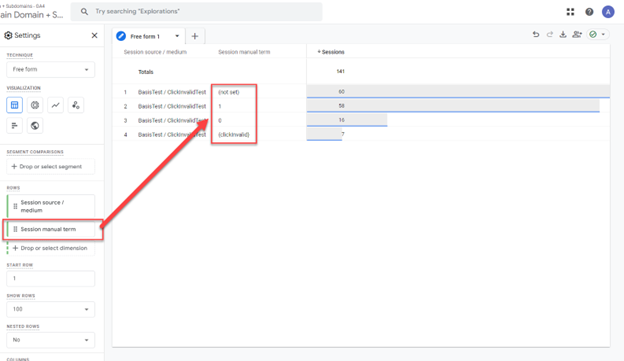
To bulk add clickInvalid parameter:
In CM360, go to Admin > Sites and select your site to open the profile.
Go to Settings > Site tag options > Keyword handling and select Insert placeholder.
Export your tag sheet.
In Excel, find and replace data-dcm-keywords= with data-dcm-keywords='{clickInvalid}'.
Save and Bulk Upload Ad Tags.